
Two people, one suspended microphone, and an unmistakable orange stage. A Hotel Lobby AI video turns an ordinary pair of portraits into a playful performance concept with immediate visual impact.
Hotel Lobby AI makes the setup refreshingly direct. The Duo preset gives each portrait its own upload slot, the prompt editor lets you direct the exchange, and the generation button shows the credit cost before you commit. You can start with your photos and build a new performance without filming a source clip.
This walkthrough follows the current Hotel Lobby AI generator: MiniMax H3, a fixed 15-second generation, 768p, and 10 credits per attempt.
1. Choose two portraits with a clear job to do
Pick one photo for the left performer and one for the right. Each should show a single recognizable face with useful detail around the hair, jaw, and shoulders. Even light and a straightforward angle give the model a cleaner visual reference.
Make the pairing intentional. Contrasting outfits help the two people read as separate performers. A dark jacket beside a lighter overshirt creates an especially clear composition against the orange backdrop.
Accepted files are JPEG, PNG, and WebP, up to 10 MB each. If your phone exports HEIC, convert the image before uploading. Start with a sharp original rather than a tiny screenshot of a social-media thumbnail. Our photo guide explains what to keep and what to crop.
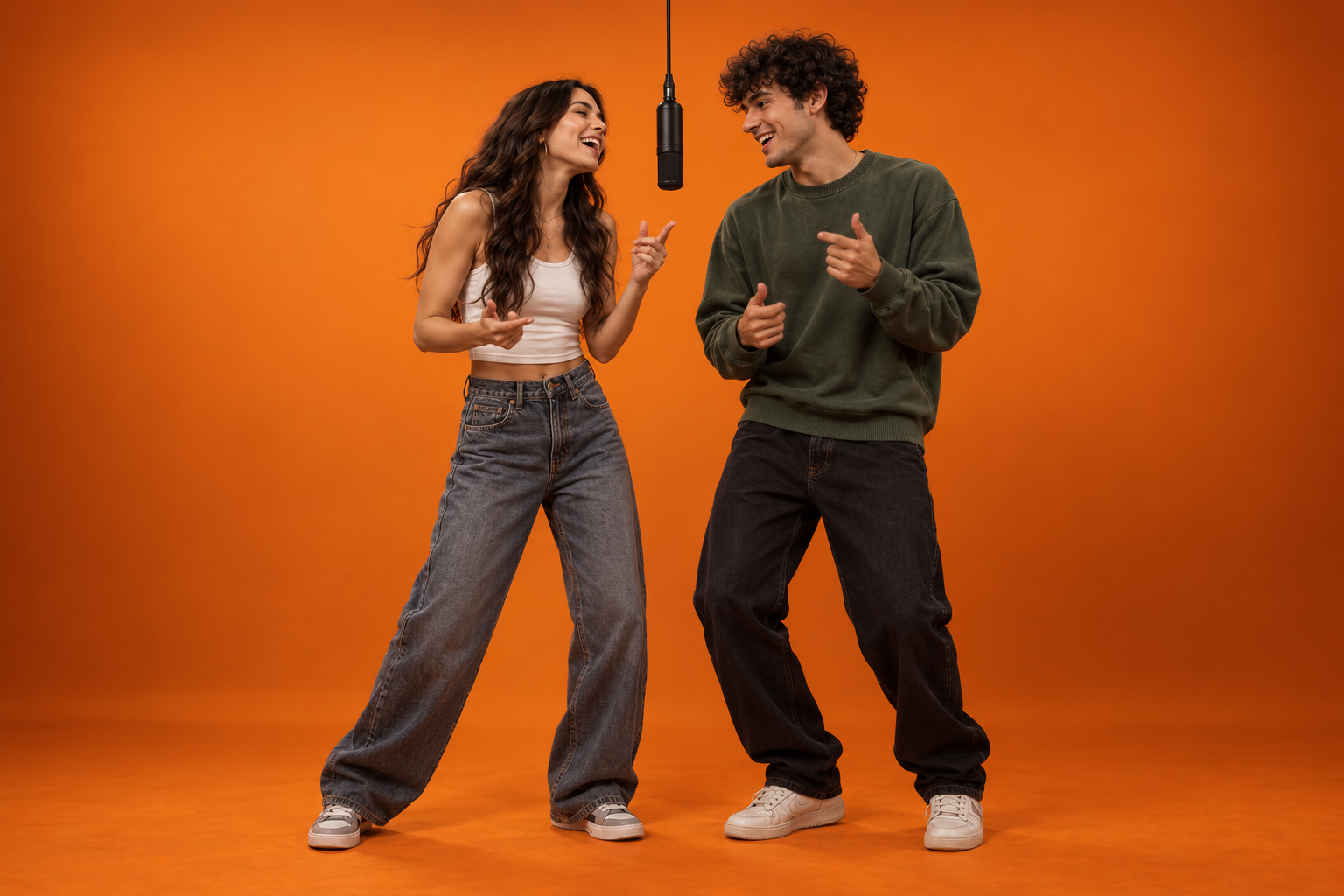
AI-created editorial concept: an original two-person stage illustration. Contrasting outfits give each performer a clear visual role.
2. Open Orange booth duo and place your performers
Go to the generator and select Orange booth duo. Add your first portrait under Left person and the other under Right person. The separate slots make the intended composition explicit.
Review both previews before moving on. You can replace an image, remove it, or swap the two sides. This is the best moment to correct an awkward crop or decide which person should open the exchange.
Creating a one-person clip instead? Choose Solo spotlight, which uses one portrait. The studio also offers other creative presets, but the classic two-photo Duo is a strong, accessible first project.
3. Give the performance one clear idea
Open Edit prompt and settings. The preset already supplies a starting direction; personalize the brief around one memorable interaction.
For a first take, keep the action simple:
Two friends share an orange studio stage beneath a suspended microphone. The left performer opens with a relaxed, confident delivery. The right performer listens with a small nod, then takes the lead later in the clip. Keep their outfits distinct, gestures small, and both faces visible in one continuous shot.
This is proposed creative direction, not a claim that the model follows every beat exactly. A strong prompt gives the performance a readable intention: one person opens, the other responds, and both belong in the frame.
Avoid packing a short clip with outfit changes, large dance moves, camera spins, and several scene transitions. The orange booth already carries the visual identity. Let the performers carry the personality. For additional approaches, use the prompt library.
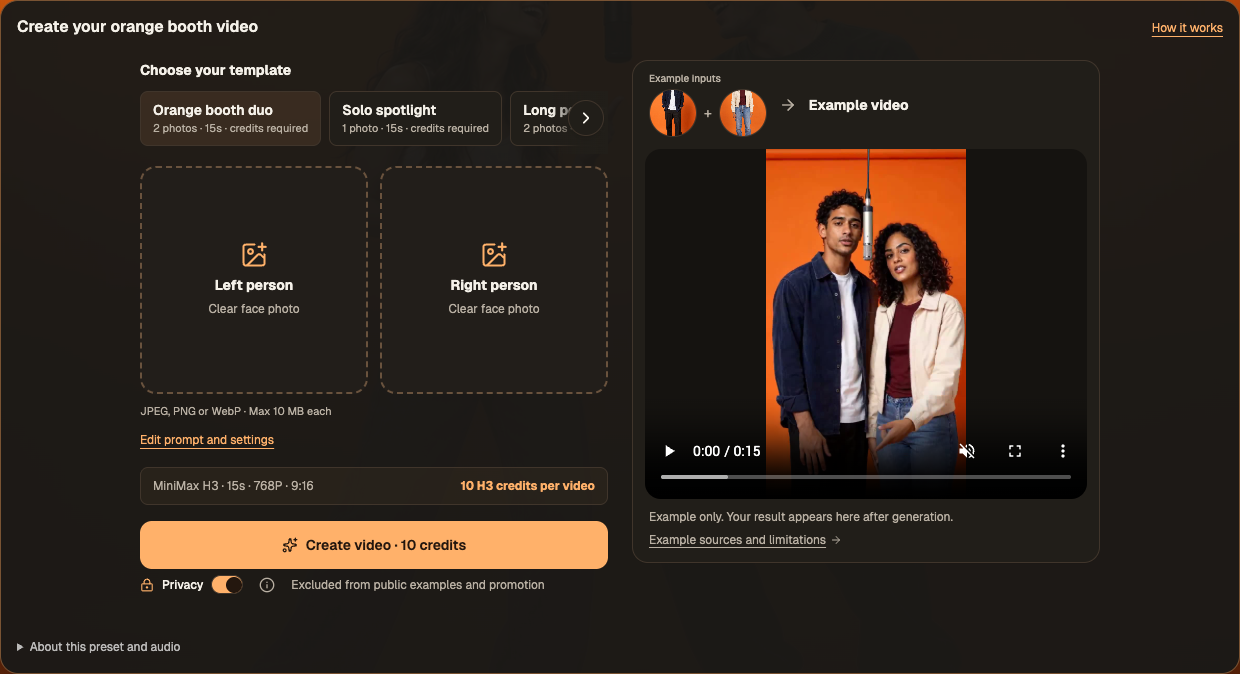
The actual generator workspace. The built-in sample helps establish the format; your own result appears after generation.
4. Review the format, privacy, and credit quote
The settings offer portrait, landscape, and square aspect selections. Choose the composition that fits your intended edit, then inspect the downloaded file's dimensions before exporting for a particular platform. The actual portrait Duo file in our two-take case study measures 768 × 1344 pixels.
Current generation is fixed at 15 seconds and 768p for 10 credits. Even the preset named Long performance currently uses this duration. The button displays the price so you can make a deliberate choice.
Privacy is enabled by default and excludes your generation from public examples and promotion. The workflow still sends the material for generation as described in the site's privacy policy.
Sign in and make sure you have enough valid credits. Current one-time packs start at $5.99; there is no subscription or automatic renewal. Your uploaded photos, custom prompt, and aspect selection persist across a refresh, keeping the preparation conveniently at hand.
5. Generate, then watch the entire performance
Select Create video · 10 credits. When the result finishes, play it from beginning to end. Look at the relationship between the two performers, the consistency of their outfits, their hand movements, and the placement of the microphone.
The best review question is practical: does this take express the idea you wanted? A playful response may matter more than a dramatic gesture. A clean shared composition may matter more than constant movement.
The real Duo example in our two-take case study runs approximately 15.08 seconds and shows a later change of lead. Its continuous orange setting and distinct outfits give it a strong, cohesive look. View the full finished example to judge the movement, rather than relying only on a still image.
6. Download the original and make the final edit
Use the completed-work download to save the original MP4. Your recent work and history make it possible to return to a finished result later.
For a second take, change one decision: reverse the opening performer, soften the gestures, or try a warmer response. Keeping the rest stable makes the variation easier to evaluate. Each new generation uses another 10 credits; confirmed failed tasks return eligible credits under the site's rules.
Add your caption and any audio you are entitled to use in your usual editor. A generated booth performance does not automatically include rights to the original commercial song or guarantee exact lip synchronization.
That is the power of this studio: recognizable style, personal portraits, editable direction, and a real MP4 you can take into your next edit. Choose your two photos, open Hotel Lobby AI, and give your duo a confident first take.